



Bitrix24
Button-triggered automation in Open Channels
Buttons in the open line chat: one click changes the stage of the transaction, sets a task, responds to the client and starts the business process. Choose and customize buttons to suit your needs.
What the application looks like
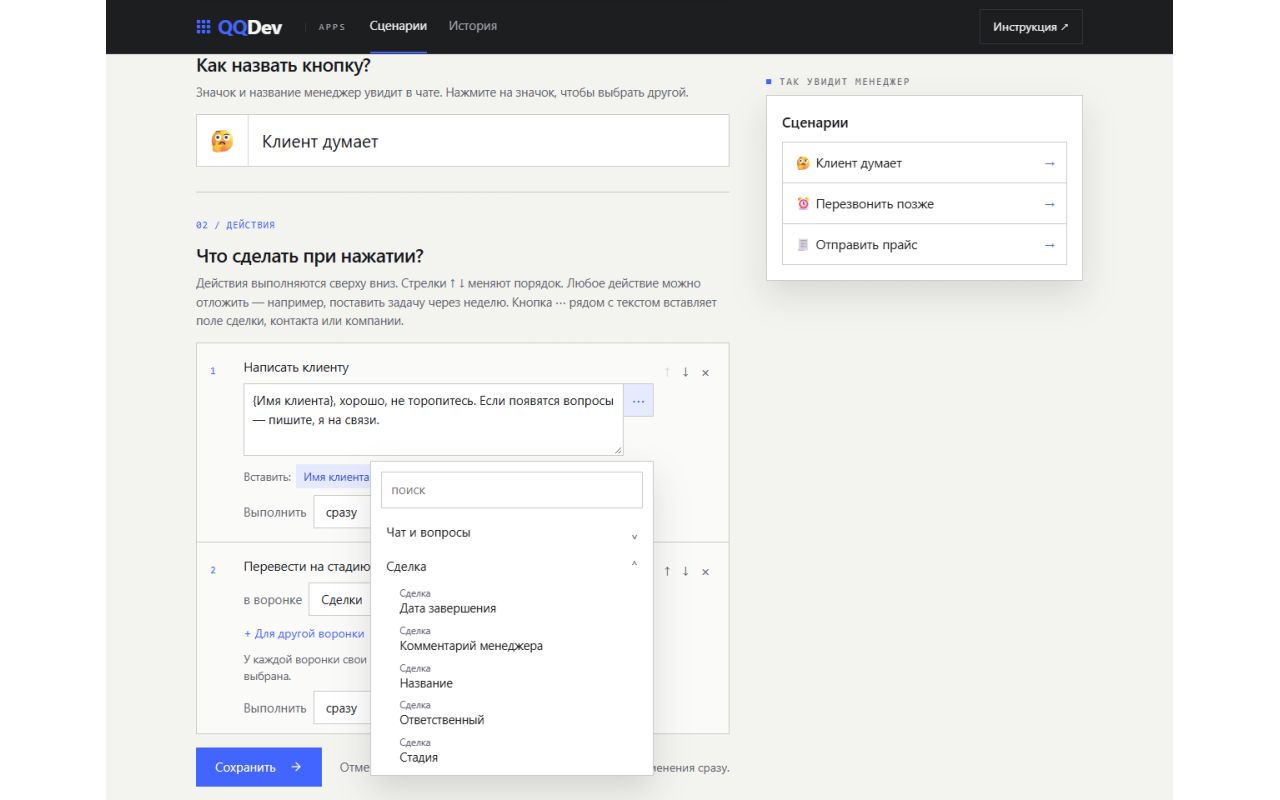
About the application
An application for sales and support teams who communicate with customers in open lines. The operator repeats the same actions in each dialogue: transfers the transaction to another stage, fills out a field, sets a task for himself, sends a standard response to the client. The application collects such actions into one button directly in the chat.
How it works
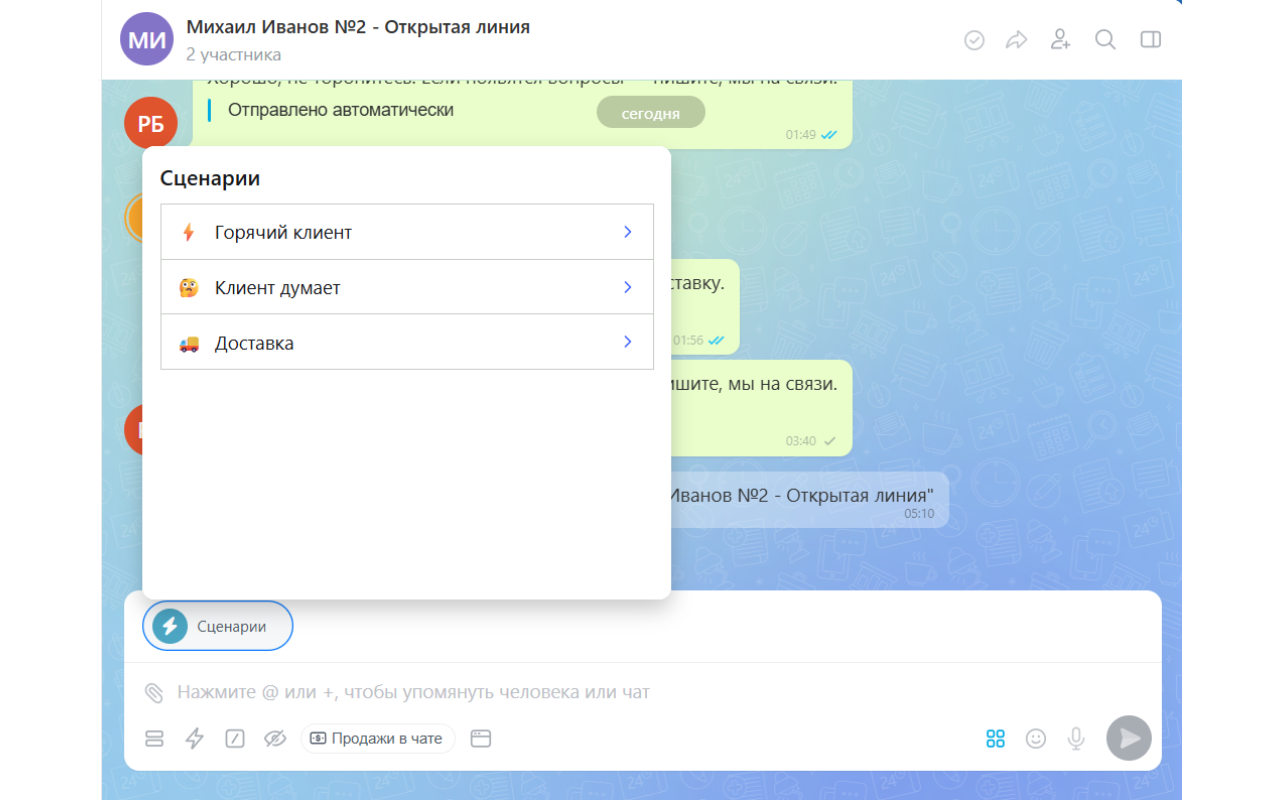
The portal administrator creates a script: comes up with a name for the button and selects actions in order. The button appears for operators near the message field in the open line chat. The operator presses it - the application performs the actions and sends a notification about the result.
Script Actions
Change the stage of a deal or lead. Each transaction funnel has its own stage.
Fill in the deal or lead field.
Assign a task related to the deal or lead to the person who clicked the button, the person responsible for the deal, or a selected employee.
Send a message to the client in the open line chat.
Start a business process for a deal, lead, contact, or company.
What else can the application do?
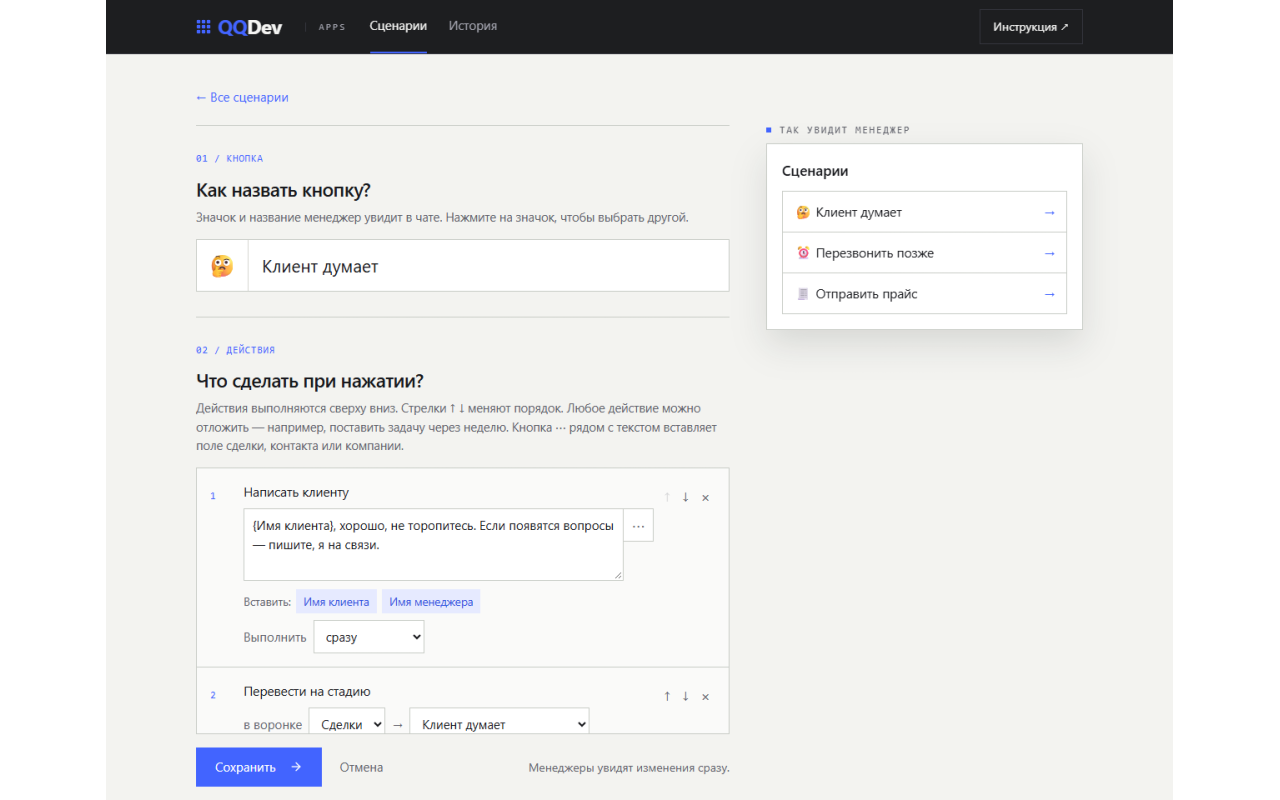
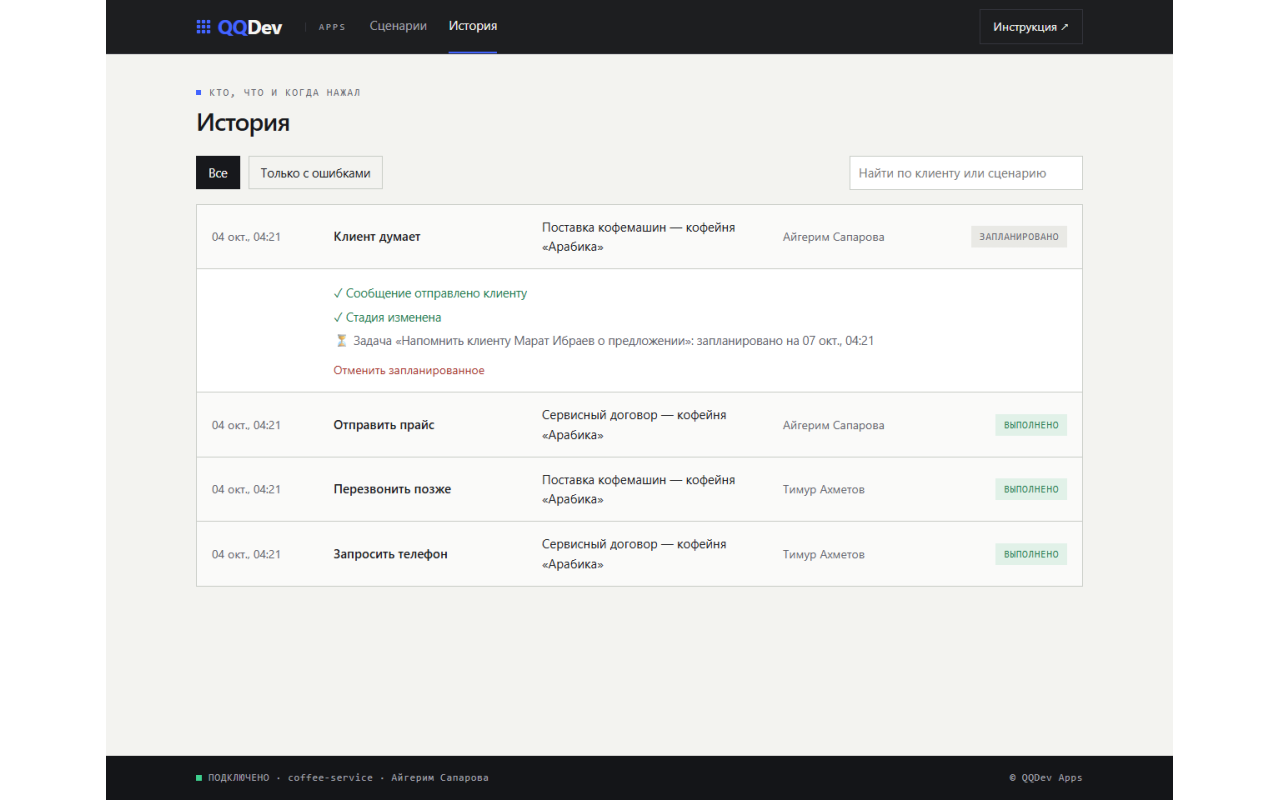
Deferred actions. Any action can be performed not immediately, but after a specified number of minutes, hours or days after clicking: for example, set the task to “remind the client” in a week. A planned action can be canceled in history.
Questions for the operator. Before running, the script may ask for a date, text, number, or option from a list; the answer is inserted into the task, message or field.
CRM fields in texts. The fields for deal, lead, contact, and company are inserted into the message and task: customer name, amount, phone number, and others.
Display conditions. The button can be shown only at the necessary stages of the transaction.
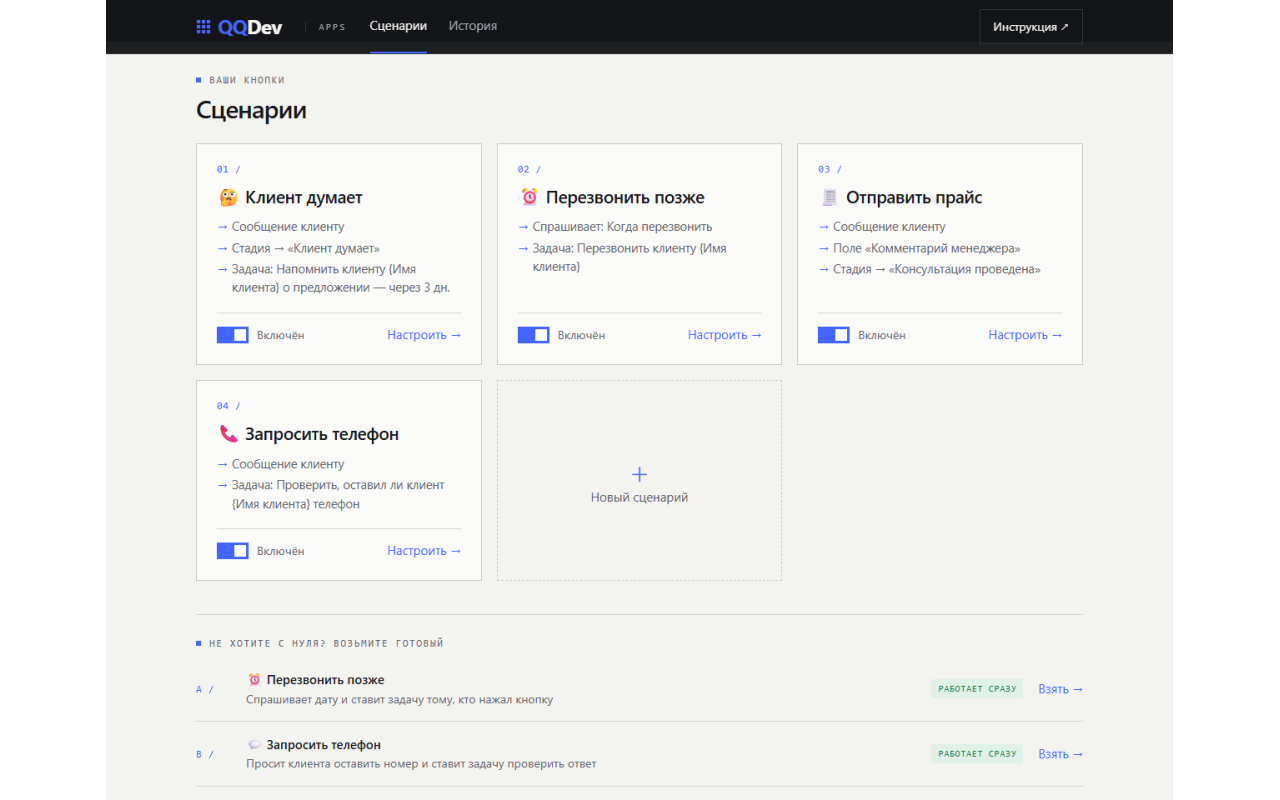
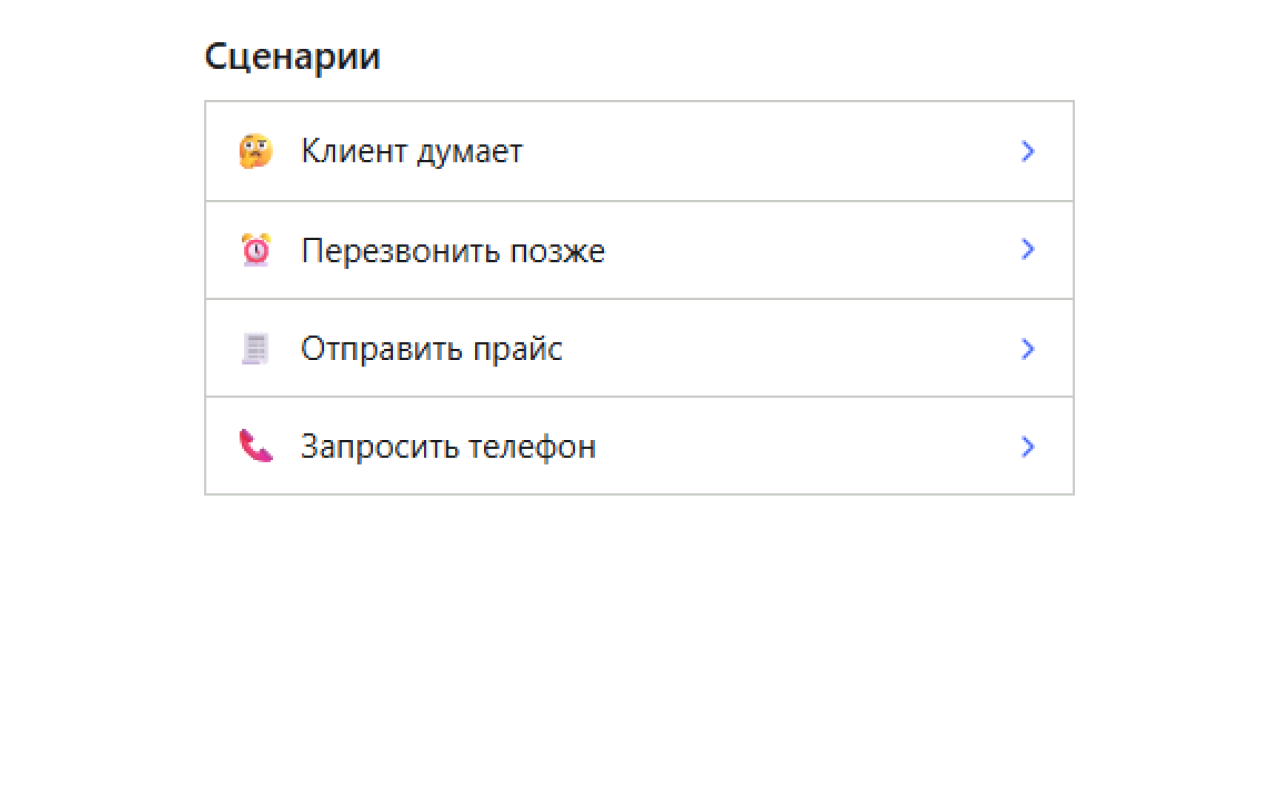
Ready-made script templates: “Call back later”, “Request phone number”, “Client thinks”, “Rejection”.
History. You can see who pressed the button and when and how each action ended.
View changes before launch in the chat sidebar.
Scripts can only be launched by a human at the press of a button: the application does nothing itself and does not use artificial intelligence. Actions are performed on behalf of the operator who clicked the button and within the limits of his rights in Bitrix24.
Requirements and limitations
The portal should have open lines and CRM.
Scripts are created and modified by the portal administrator; they can be launched by any employee who has access to the dialogue and to the deal or lead.
The target of the script is the deal or lead associated with the conversation. If a client has several transactions associated with him, the operator selects the one he needs. Smart processes are not supported.
Launching business processes is available on Bitrix24 plans that include business processes in CRM. The process is launched as the administrator who saved the script: Bitrix24 allows only the administrator to launch business processes from applications.
Fields with multiple values and multiple business process parameters are not filled in.
A message to the client is considered sent when it is received by Bitrix24; The application does not check delivery to the messenger.
Buttons are available in the web version of Bitrix24. There are no buttons in the mobile application.
Interface in Russian.
The application is free, external services and additional programs are not required.
Installation
1. Install the application from the Market. The portal administrator must install: the application will request access to chats, open lines, CRM, tasks, list of employees and business processes. After installation, the “Scripts” section will open.
2. Click “New Scenario” or take a ready-made template. Set the icon and name of the button, add actions. To change the stage, select the stage in each funnel where the button should work. Click “Save” - the button will immediately appear for employees.
3. Open the open line dialog that the deal or lead is associated with. Next to the message field, tap the apps icon and select Scripts, then tap the script button. You will receive a notification about the result.
4. To select a deal before launching and see the changes, open “Automations” in the chat sidebar.
5. See the launches in the “History” section of the application. Planned actions are also canceled there.
Need help with Bitrix24 automation?
If the task involves multiple steps, integrations, or changes to team work, examine Bitrix24 automation service. Suitable for changing funnels, fields and access rights CRM configuration.